
Color animation is one of the mostly used animation, it simply display the desired color when the associated tag matches or fall within the condition. Click 'Add' to start adding animation condition by entering tag, condition and the desired color. Color can be entered by clicking the "Color Picker" button. A pop up of color picker window will prompt for color selection. Note that the priority of the animation conditions can be re-arranged by clicking "Move up" or "Move down" button.
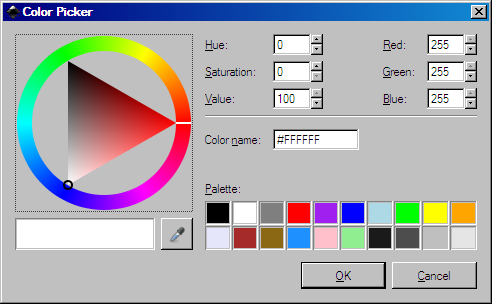
Color Picker
After selecting color, a color code will appear in color code column. Below is a sample of status tag configuration for a device connection status. Since it's a boolean tag, only 2 colors are entered. When the device is disconnected, red will be shown and when the device is detected, green will be shown instead.
Note that the system will take the latter configuration if the live value fall between two colors configuration. For example, if 0 is red and 1 is blue, any live value between 0 and 1 will display in blue.
To get transparent blinking, enter 'none' as one of the color code. For instance, to have a red blinking effect on certain tag value, the entry shall look like 'red/none', or '#FF0000/none'. To get alternate color blinking effect, enter the desired colors accordingly, for instance, 'yellow/blue' will blink between two colors, 'white/orange/green' will blink through 3 colors in sequence.
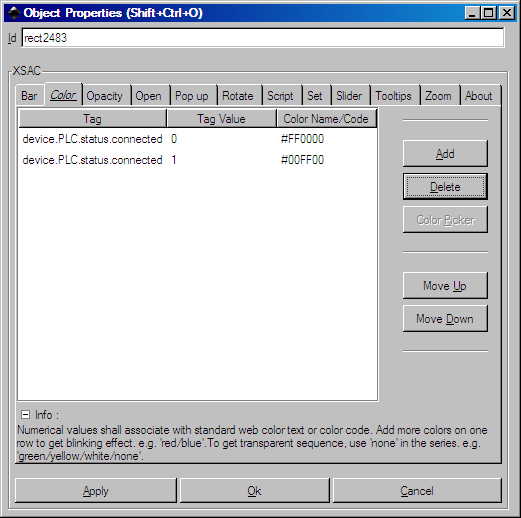
Color Animation
If user prefer to enter color code directly, a list can be viewed by calling out Swatches pop up window by pressing Ctrl+Shift+W. Adjust the window and select 'List' and 'SVG'.
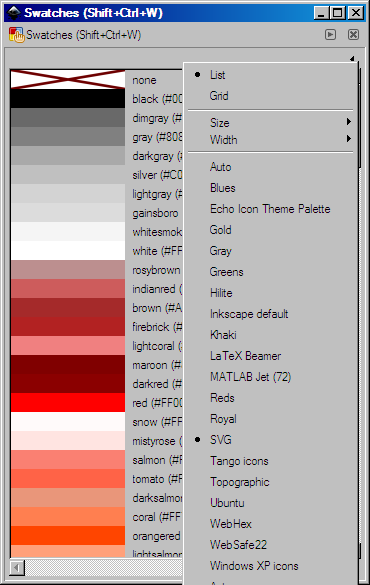
Color name listing in Swatches
For more complicated conditioned animation, logical operation can be applied just like Tag Expression by putting a leading dollar sign $ in front of the targeted tag name. For instance, to test if a tag is fall within 1 & 10 for one specific color, the expression can be written as 1 < $tag && $tag < 10. And then the evaluated result must be entered as 1 which is true in logical mean. Conversely, to test if a tag if fall beyond 1 & 10 for another color, separate entry of expression can be written as $tag <= 1 || 10 <= $tag. It's advised to always evaluate all conditions to true by entering all limit value as 1.